Advanced Settings of the Onboarding Application
General Guidance
The Fast Track Onboarding Application features a "Settings" area, besides the "Registry and Onboarding" Onboarding Wizard.
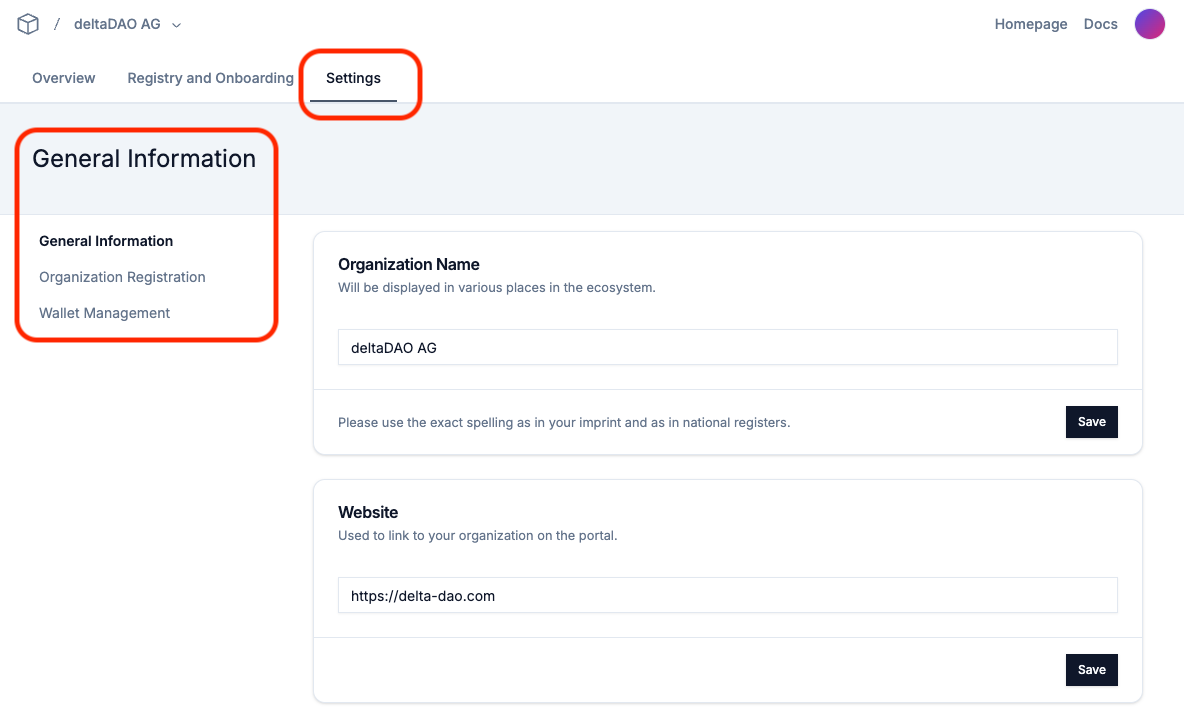
This area allows you to change and update data provided with regard to
- General Information about your Organization
- Organizational Data (Name, Address, Registration Numbers)
- Wallet Management
The "Settings" area also gives you some advanced options which are not available during the Onboarding Wizard guided tour.
- See a list of all associated wallet addressses
- Add and manage additional wallet addresses, incl. previously available via MetaMask
Not available in this area, only accessible through the Onboarding Wizard guided tour, is the "Request for Verification" functionality, described in the Onboarding Walkthrough. If you make changes to your organizational data here and/or if you are adding wallets, please make sure to submit a new verification request when necessary to reflect the updates.
General Information
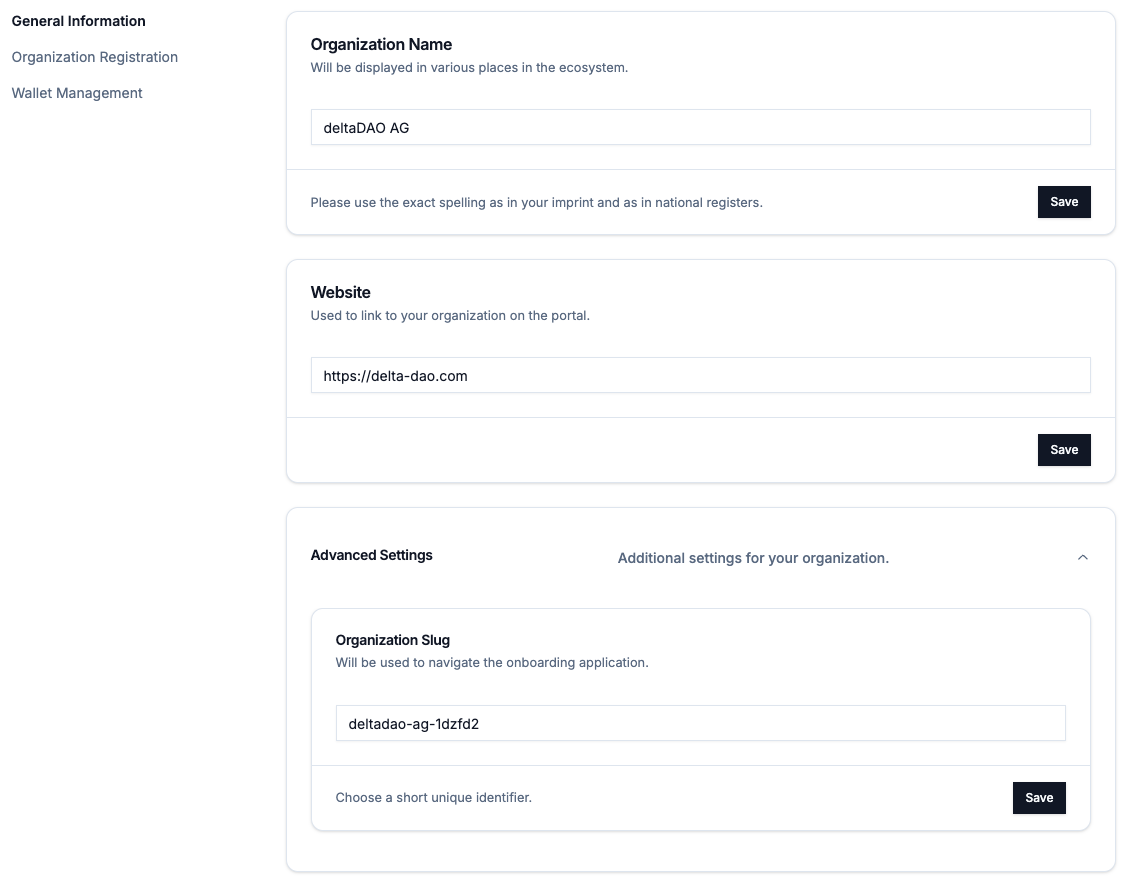
"General Information" allows you to see and update the Organization Name, associate a website with the organization, and to edit your organization slug. The organization slug and website are optional. The information entered here needs to be saved with the "Save" button to be updated correctly.
Organization Registration
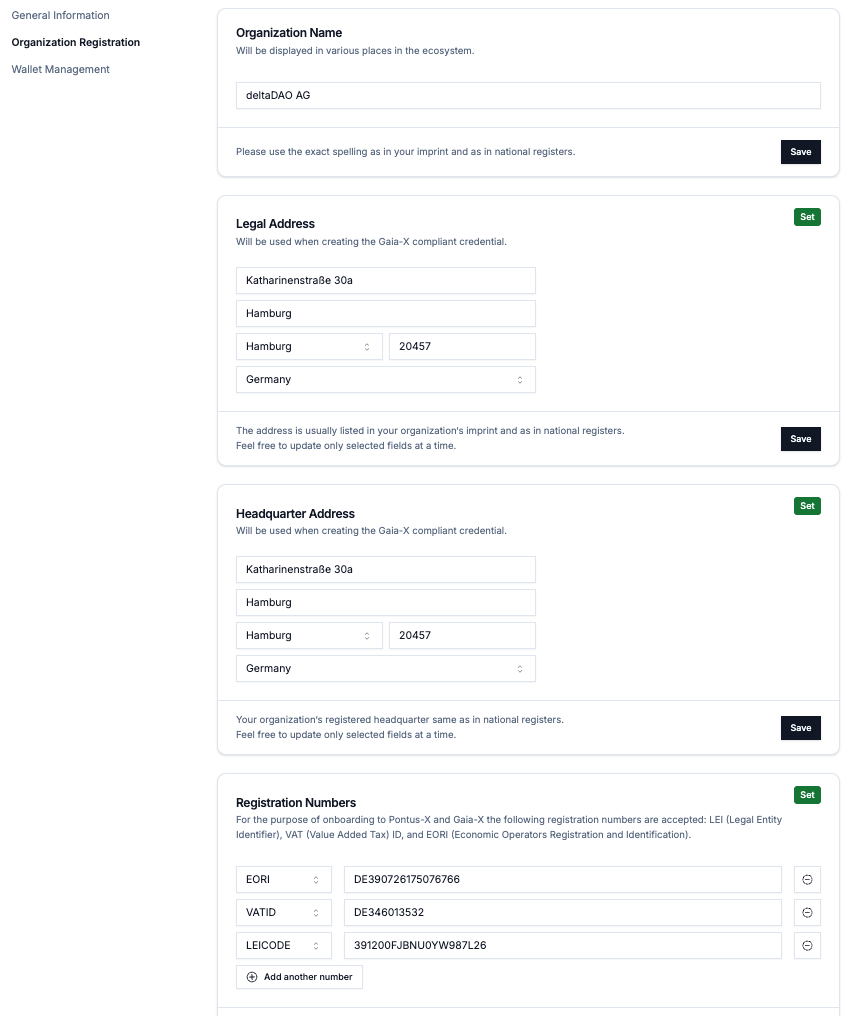
"Organization Registration" allows you to modify the same information (Organization Name, Addresses, Registration Numbers) as in the guided Onboarding Wizard. The information entered here needs to be saved with the "Save" button to be updated correctly.
Wallet Management
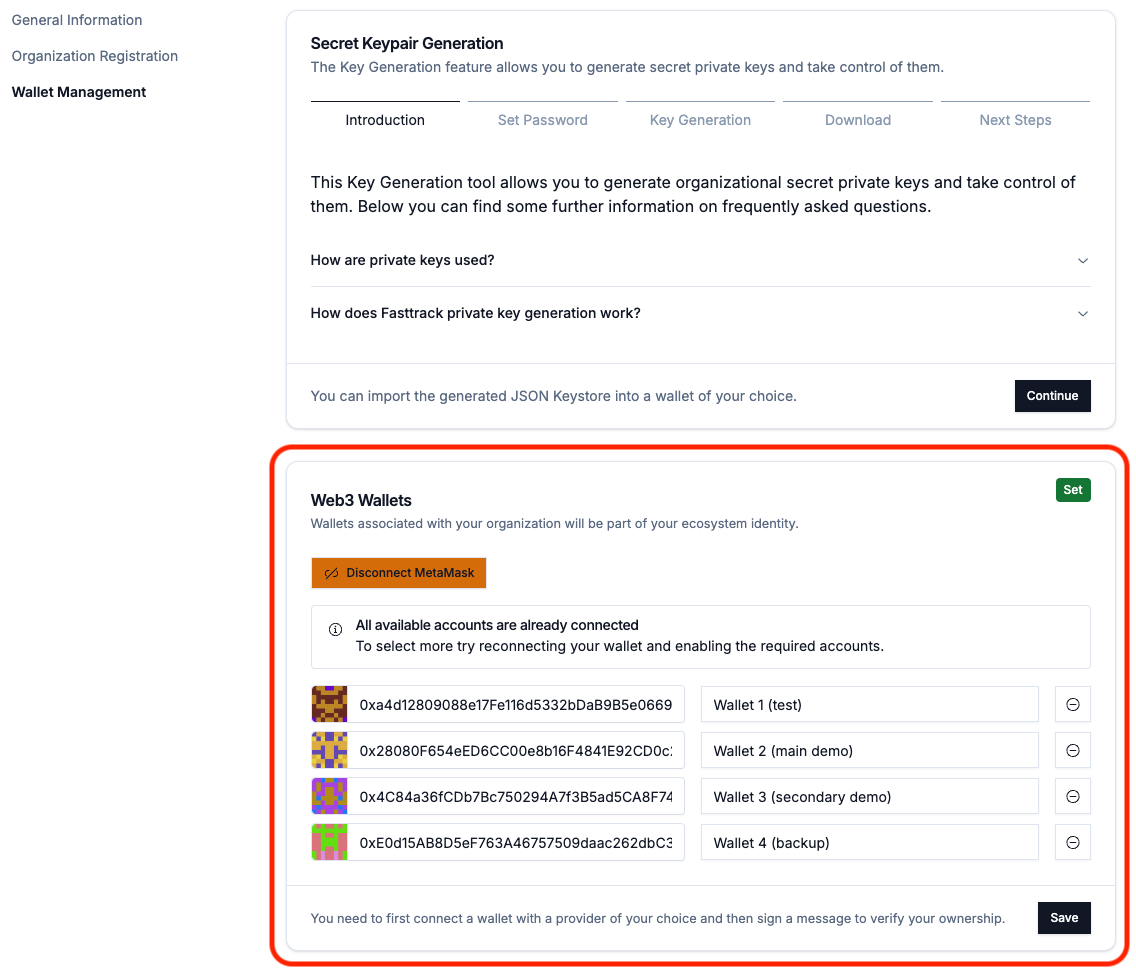
The "Wallet Management" section enables you to generate a secret key and a wallet file, just like the guided Onboarding Wizard. In addition, it provides an overview of the organizational wallets that are already associated.
All associated wallets are identified by their "public address", which is derived from the public and private keys, and a name. The names of the wallets can be edited for internal management, but are never shown or referenced publicly. The information entered here needs to be saved with the "Save" button to be updated correctly.
You can remove wallets from the overview using the "minus" button on the right-hand side of the list.
Import from MetaMask
A core feature of this advanced settings page is the import of previous wallet addresses held within a MetaMask wallet. To add any number of addresses and to register them with the organization, continue with the "Connect with MetaMask" button.
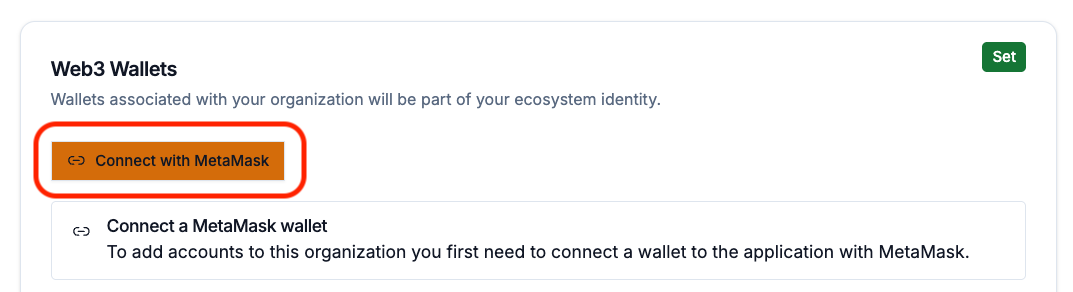
If the wallet is unlocked and ready for the connection with the Fast Track Onboarding Application, the user is prompted with the request for a website connection which needs to be approved.

Depending on the existing accounts in MetaMask, a new wallet will be made available for adding to the list of organizational wallets. Permissions can be managed within the MetaMask application individually for each website and network using MetaMasks "Manage Permissions" Menu or through MetaMask "All Permissions".
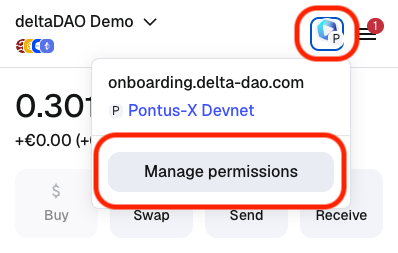
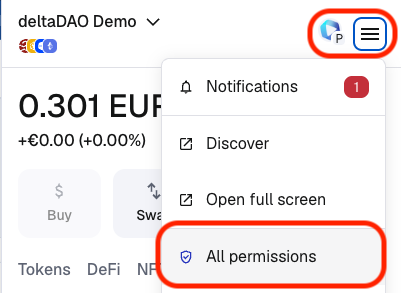
If an account from MetaMask is available that has not already been associated with your organizations and if permissions are granted to connect to the Onboarding Application website, the account now becomes available to be added to the list of wallets.
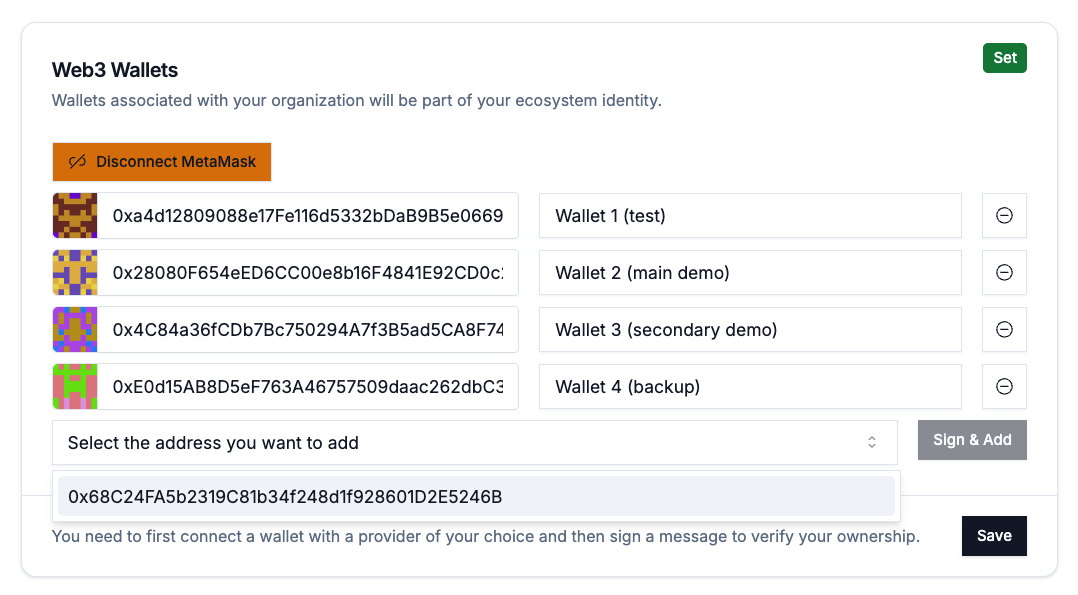
To add the account, the "Sign & Add" button needs to be used and the user will be presented with a "Sign-In Request". This "Sign-In" Request performs the signature of a message with the associated private key, securely stored in the wallet. This is a feeless signature between the user and the portal to confirm ownership of, and control over, the private keys associated with the wallet address. It prevents the listing of any other address not controlled by the current user in a tamper-proof manner. Please review the request and approve it with "Confirm" to add the account to the list.
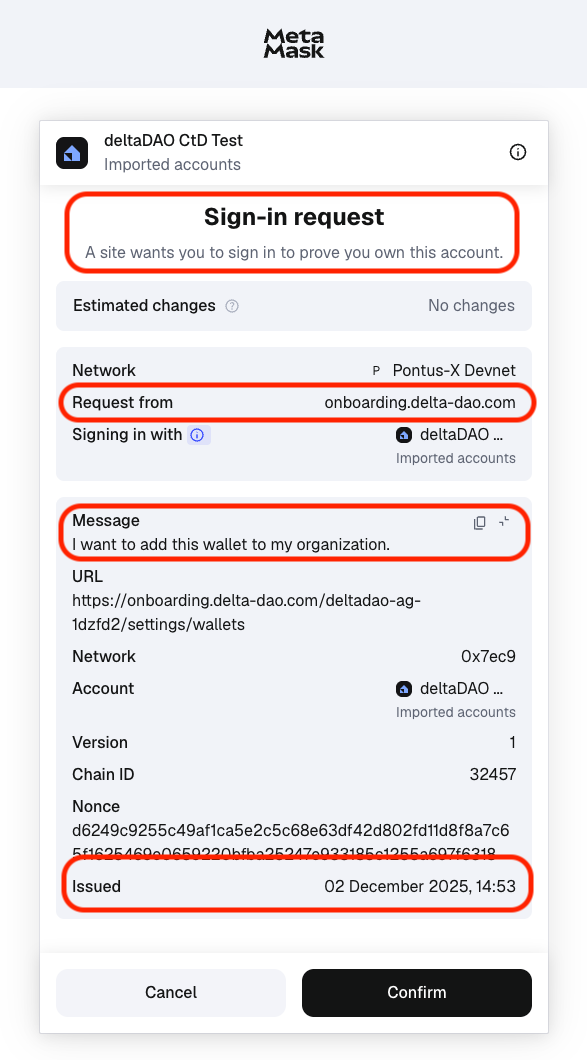
Once this step has been completed, the wallet will be added to the list of organizational wallets and will automatically receive an identity token. Please visit the Pontus-X Faucet to fund this wallet for usage in the Pontus-X ecosystem.